WP-Members is changing the defaults for where and how it stores files uploaded through the registration form. If you do not have an image or file field in your registration form, then there is no need to worry about this. However, if you have an existing installation prior to 3.5.5, and you have an image or file upload field in your form, you may want to consider this upgrade process which will move existing files to the new structure.
Previously, custom obfuscation was the way to handle this. And that process is still possible. However, now the plugin implements its own obfuscation automatically.
Note: upgrading the filesystem is not a requirement. However, upgrading is recommended. Any new files uploaded will use the new file structure. Existing files would still be accessible without moving. The necessity of moving will depend on what type of files you have uploaded. Anything of a personal and restricted nature should be moved.
There is a set of WP CLI commands available to manage this process rather than using the admin panel. While using the admin panel is OK for smaller sites with only a few users with uploaded files, installs that may have many users and files to move may find that WP CLI is more stable and effective. Using WP CLI is the recommended method.
It is important to create a backup of your database and filesystem before running these commands. The process is two steps – first moving the files, and second, deleting the old ones. The first step will make changes in the database relative to the file paths so that WP can find them. The second step deletes the old locations. Thus, it is important to create a backup before doing either step in the event that something goes wrong and you need to roll back. While I have taken careful steps to handle the processing, WP is highly customizable as are the possible webservers it runs on. It is impossible to test for every contingency, so doing this without a backup (and knowing how to restore) is at your own risk.
On admin load, the plugin checks to see if there are any attachment post types in WordPress that are in the deprecated /wp-content/uploads/wpmembers/user_files/ path. If there are, it will display a “Filesystem” tab in the plugin’s admin panel.
Be sure to read the instructions and note that you are highly advised to make a backup of your database and your filesystem before running this process in the event that you need to roll back.
The plugin counts the number of attachment post types that match the path and will indicate this number in the admin panel (see screenshot). This number represents the number of attachment posts, not the actual number of files to be moved. If you use an image form field, the actual number of files will be higher as WordPress makes additional images for various sizes.
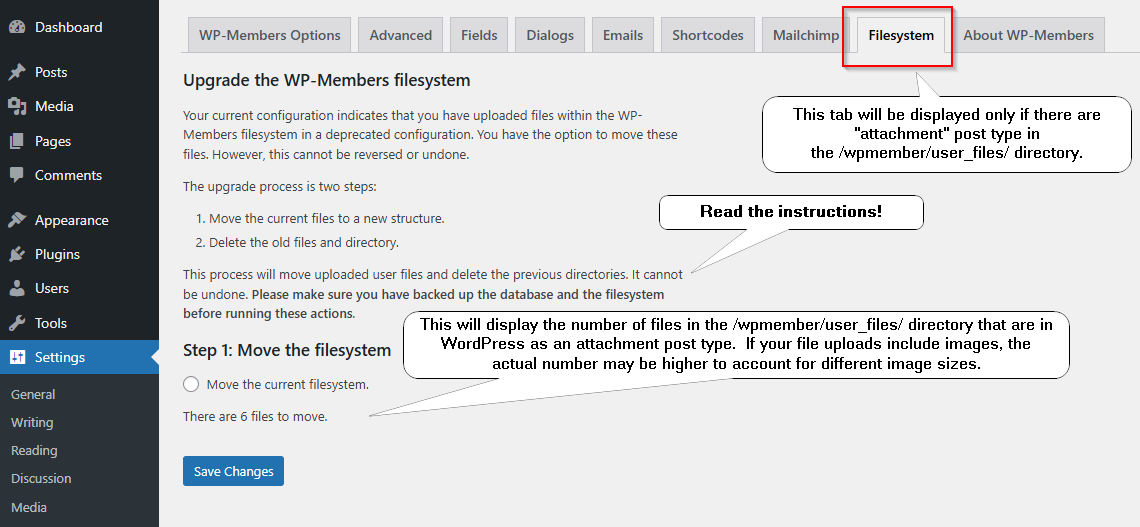
Step 1 creates a new user files directory with a hash, a new directory for each user using a hash, and hashes the name of each file. It updates the database with this information for each attachment post type.
If you have run step 1 and there are no errors, the following screen will display, prompting you to complete step 2, which will delete the old files. In most cases, step 1 can be run again if necessary without damaging the filesystem or the database. It will only act on attachments that it finds in the database (not the actual file system) matching the wpmembers/user_files/ path.

Once you have completed step 1 and there are no errors, you may run step 2.
DO NOT run step 2 until step 1 is confirmed to be complete! Step 2 deletes the old files from the filesystem. It cannot be reversed. Make sure you have created a filesystem backup that you can restore before running this step.
Once you have completed step 2, you should receive a success message. If the process was unable to delete due to errors, this will be noted in the screen. File permissions may prevent deletion through the script, in which case you may need to manually delete the directory.

Once the process is complete, the “Filesystem” tab will be removed.
Note: if you completed step 1 successfully but step 2 returned an error message, the “Filesystem” tab will likely still be removed for you as the plugin is looking for the deprecated path in the WordPress database. If you received and error in step 2 and need to remove the deprecated directory manually, the “Filesystem” tab will no longer be there to remind you.
If you need to remove the deprecated directory manually, the path to delete is as follows:
wp-content/uploads/wpmembers/user_files/DO NOT delete the /wpmembers/ directory. Only delete the /user_files/ directory. This is the old directory. If step 1 was completed successfully, you will see an additional user files directory that ends in a hash similar to the following:
wp-content/uploads/wpmembers/user_files_2VyfMRqYEX1wNF3JEXBrwjsU/Do not delete that directory! It is the new one containing your moved and renamed files and user directories.